



What Do the 9 Navigation Keys Do? Print Screen, Scroll Lock, Insert, and More
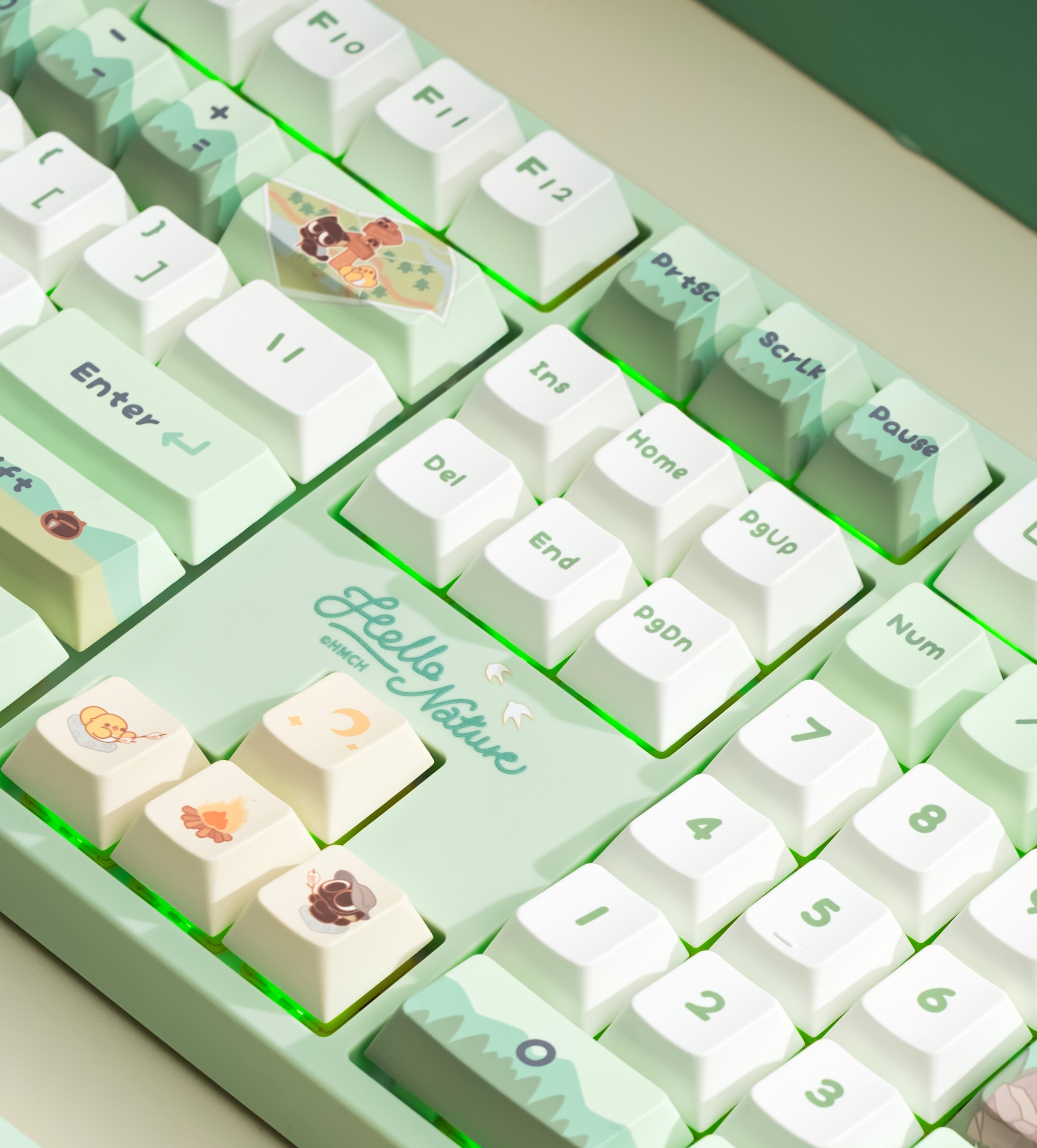
The block above a full-size keyboard’s arrow keys can look like a collection of leftovers. It usually contains Print Screen, Scroll Lock, Pause/Break, Insert, Delete, Home, End, Page Up, and Page Down.
These keys come from different periods of computer history, so they do not form one tidy system. Some remain useful every day, some work mainly inside particular applications, and some survive for compatibility. Understanding the group is still useful, especially when one of the keys changes a program’s behavior by accident.
1. Print Screen: Capture the Screen
Print Screen, usually labeled PrtSc, PrtScn, or Print Scr, captures screen content in Windows. Its exact behavior can vary with Windows settings and hardware.
Common Windows shortcuts include:
- Print Screen: Captures the entire screen to the clipboard, or opens screen snipping when that accessibility setting is enabled.
- Alt + Print Screen: Copies the active window to the clipboard.
- Windows + Print Screen: Captures the whole screen and saves an image in the Pictures/Screenshots folder on supported hardware.
- Windows + Shift + S: Opens the screen-capture interface so the user can select a region or capture a window or full screen.
If a compact keyboard does not have a dedicated Print Screen key, the function may be placed on an Fn layer.
2. Scroll Lock: Change What the Arrow Keys Move
Scroll Lock is a legacy toggle whose behavior depends on the application. Its best-known modern use is in Microsoft Excel.
With Scroll Lock off, an arrow key normally moves the active cell selection. With Scroll Lock on, the arrow keys scroll the worksheet while the active selection remains in place. Excel can show Scroll Lock on the status bar when the mode is active.
This is why a spreadsheet may suddenly appear to ignore the arrow keys: the keyboard is scrolling the view instead of moving between cells. Press Scroll Lock again to turn it off. On a keyboard without that key, the Windows On-Screen Keyboard can provide it.
Scroll Lock does not universally freeze a selected item, and its effect on Page Up and Page Down should not be assumed. Page navigation is application-specific.
3. Pause/Break: A Legacy Control Key
Pause and Break often share one key. Their origins reach back to terminal and early PC workflows, where Pause could halt output and Break could interrupt a process.
Modern Windows applications rarely assign a standalone function to the key. Some command-line tools, development environments, firmware screens, remote systems, and older software may still recognize Pause or Break, often in combination with Ctrl.
It is not reliable to assume that Pause will stop every computer during startup. Firmware behavior varies, and many modern systems boot too quickly or simply do not implement that function.
4. Insert: Switch Between Inserting and Replacing Text
The Insert key is associated with two editing modes:
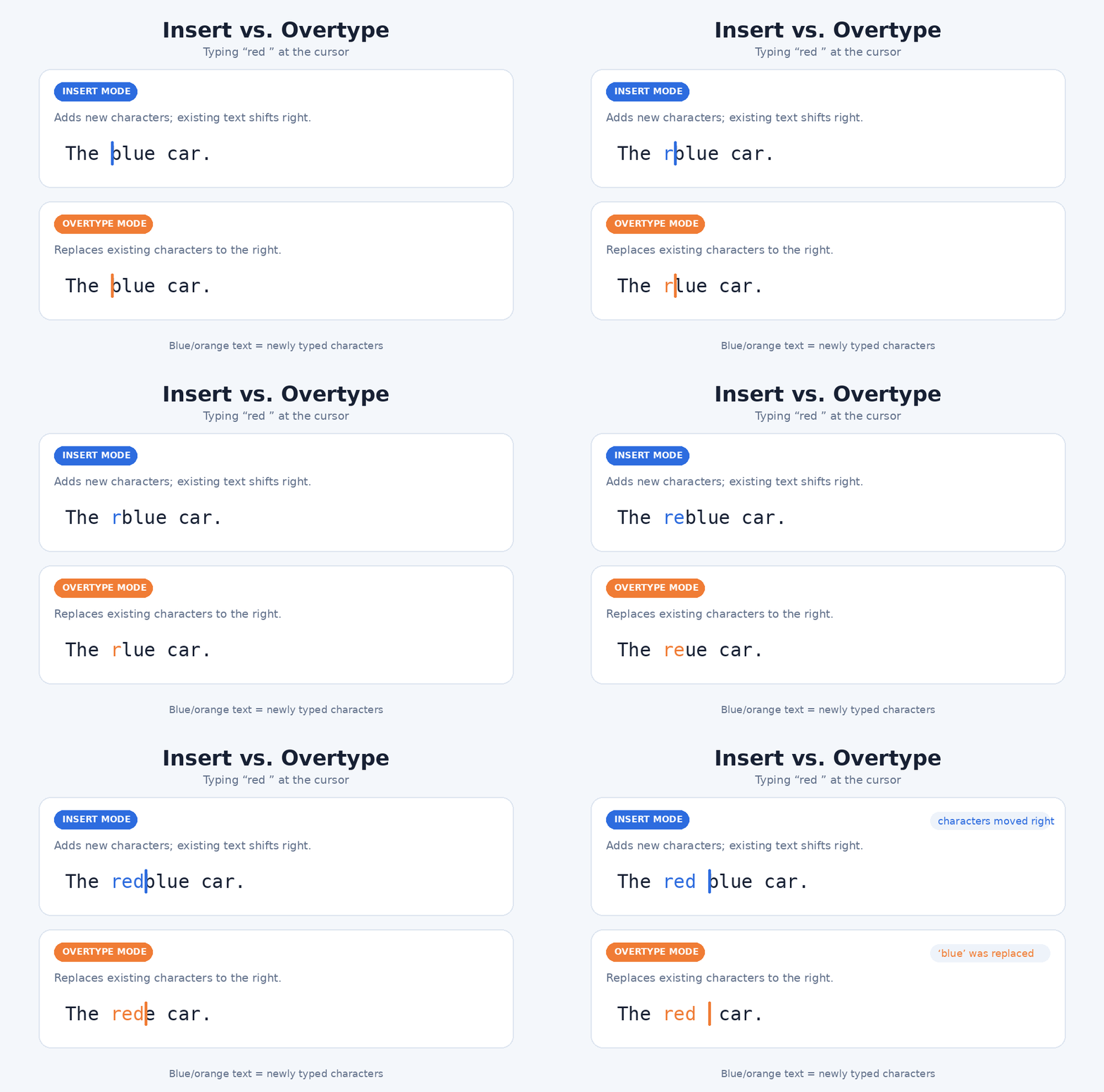
- Insert mode: New characters are inserted at the cursor and existing text moves to the right.
- Overtype mode: New characters replace existing characters to the right of the cursor.
Support is application-specific. Microsoft Word for Windows, for example, can be configured so Insert toggles Overtype mode, but the option may need to be enabled first. Other apps ignore the key or use it for a different shortcut.
If typing suddenly replaces the next character, check the application’s Overtype setting before blaming the keyboard or input method.
Insert also appears in established shortcuts. In some Windows contexts, Ctrl + Insert copies and Shift + Insert pastes.
5. Delete: Remove What Comes After the Cursor
In many text editors, Delete removes the character to the right of the cursor, while Backspace removes the character to the left. The result can differ when text is selected or an application defines its own editing behavior.
In File Explorer, Delete normally moves a selected file or folder to the Recycle Bin. Shift + Delete deletes it without moving it to the Recycle Bin first. That is more difficult to undo, but “not in the Recycle Bin” does not guarantee that data is technically unrecoverable.
Ctrl + Alt + Delete opens the Windows Security screen. From there, a user can access options such as locking the device, signing out, or opening Task Manager. It does not directly open File Explorer.
6. Home: Move to the Beginning
Home usually moves the cursor or view toward a beginning, but the exact destination depends on context.
In many text editors, Home moves to the start of the current line. Ctrl + Home often moves to the beginning of the document. Ctrl + Shift + Home commonly selects from the cursor to the beginning of the document.
In File Explorer and many windows, Home moves focus or the view to the top. Web browsers commonly scroll toward the top of a page, although a focused text field or web application can capture the key instead.
7. End: Move to an Ending
End is the counterpart to Home. In many editors, it moves to the end of the current line. Ctrl + End often moves to the end of the document, and Ctrl + Shift + End commonly selects from the cursor to the end.
In a browser or scrollable window, End often moves toward the bottom. Again, focused controls and application shortcuts can override the default.
One shortcut should not be confused with shutdown: Ctrl + Alt + End is used in a Remote Desktop session to display the remote Windows Security dialog, serving a role similar to Ctrl + Alt + Delete on the local computer. It is not a standard quick-shutdown command.
8. Page Up: Move by a Viewport
Page Up moves the document, webpage, terminal, or list upward by approximately one visible screen. “Page” here usually means the current viewport, not necessarily a printed page.
The cursor or selection may move as well, depending on the application. In a text editor, Page Up often moves the insertion point while scrolling. In a browser, it generally scrolls the page. In Excel, it moves one window upward through the worksheet.
Some applications use Alt + Page Up, Ctrl + Page Up, or other combinations for horizontal movement or tab navigation.
9. Page Down: Move Forward by a Viewport
Page Down performs the corresponding downward movement. It is useful for long documents, web pages, spreadsheets, logs, and menus because it advances by a predictable screen-sized amount without requiring a mouse.
The Spacebar can scroll down in many browsers, but not everywhere. If focus is on a button, text field, media player, or interactive page element, Space may activate that control instead. Page Down more clearly expresses a navigation command.
Why These Keys Behave Differently Across Apps
The keyboard sends key events; the operating system and active application decide what those events mean. A key with a familiar label can therefore behave differently in a browser, spreadsheet, editor, game, terminal, or remote session.
Compact keyboards do not necessarily remove these functions. They often place them behind an Fn layer or make them remappable in keyboard software. The printed legend tells you where the manufacturer placed the command, not how every application will respond.
Suggested Image: Compact keyboard layer diagram showing the nine navigation functions mapped onto an Fn layer.
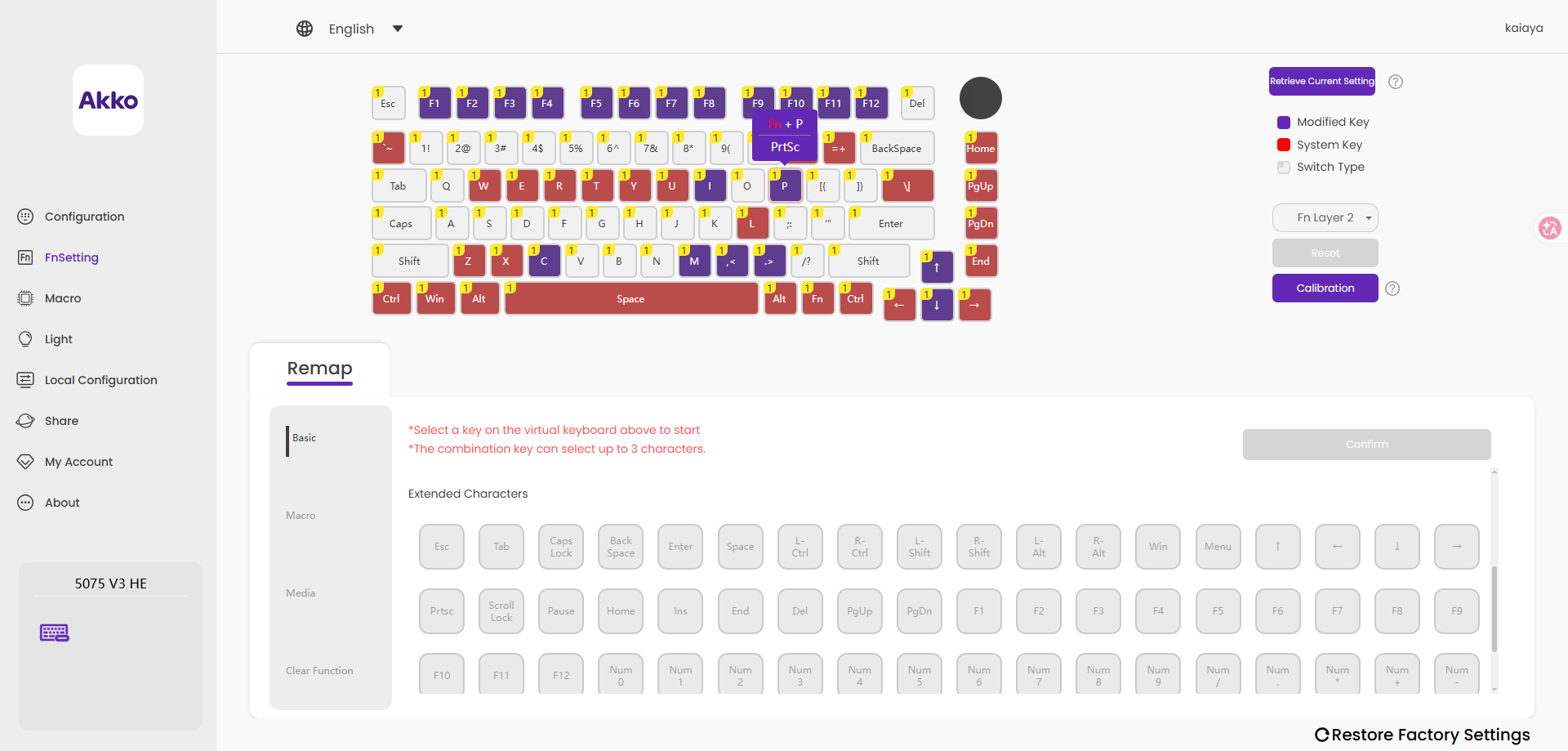
The nine-key cluster is a mixture of modern shortcuts and legacy controls. Print Screen remains a practical capture tool. Home, End, Page Up, Page Down, Insert, and Delete accelerate navigation and editing. Scroll Lock still matters in Excel. Pause/Break survives mainly for specialized and compatibility-driven uses.
The most important rule is context. These keys do not control every program in exactly the same way, so treat their labels as common conventions rather than universal commands.