


The 8K Keyboard Trap: Why Your Coiled Cable Might Be Killing Your Performance
You just unboxed a brand-new, top-tier Hall Effect gaming keyboard like the MOD007 V5 HE, MOD68, or 5075 V3 HE. It promises a nice 8,000Hz (8K) polling rate, giving you near-zero latency for competitive gaming. You plug it into a gorgeous, color-matched coiled aviator cable to complete your desktop aesthetic, load up a polling rate tester, and look at the screen—only to find it isn’t even coming close to 8K.
What gives? The hidden culprit isn’t your keyboard or a software bug. It is almost always your cable. While beautiful aviator and coiled cables look amazing on camera, they frequently choke true 8K performance. Before you return your hardware, you need to verify your cable first.
What Is Polling Rate and Why 8K Matters
The polling rate is how many times per second your keyboard reports keypress data to your computer. A standard keyboard polls at 1,000Hz (once every millisecond). An 8K keyboard bumps that up to 8,000 times a second, slashing reporting latency down to a mere 0.125 milliseconds.
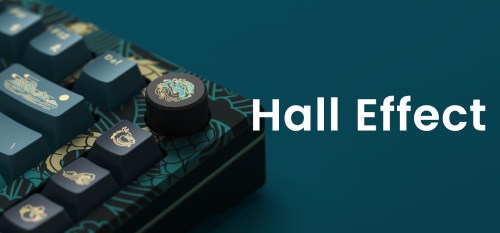
When you pair an 8K polling rate with magnetic Hall Effect (HE) switches—which use sensors to detect rapid, minute key movements—the competitive advantage is real. Your inputs register instantly, movements like counter-strafing feel immediate, and ghosting or input delay completely vanishes.
The Cable Bottleneck Explained
Pushing data 8,000 times a second requires absolute signal integrity. Standard data transmission is easy, but 8K polling saturates the connection with an immense amount of data packets.
Most custom spiral or aviator cables fail at this level for a few simple reasons:
- Increased Resistance: Coiled cables are structurally much longer than they look. A 6-inch coil can easily hide 5 to 6 feet of tightly wound wire, increasing electrical resistance.
- Weak Shielding: Aviator connectors split the cable into two parts. This break in the line introduces a massive point of vulnerability for electronic interference if the connector isn’t perfectly shielded.
- Impedance Drops: Data signals degrade over distance. If the wire gauge inside the aesthetic sleeve is thin or poorly insulated, the data packets become corrupted, and the keyboard automatically drops its connection speed to stay stable.
Aviator/Coiled Cables vs. Plain Stock Cables
It boils down to an aesthetic vs. performance trade-off.
Standard coiled cables were engineered when 1,000Hz was the absolute ceiling. They simply cannot handle the bandwidth of 8K. If you absolutely must have a coiled look, you have to buy cables that are explicitly tested and certified for 8K polling—ordinary custom cables will not cut it.
Real-World Examples: MonsGeek M1 V5 HE, M2 V5 HE, and M3 V5 HE
The MonsGeek V5 HE lineup (M1, M2, and M3) is built precisely to deliver elite 8K wired performance. When you open the box, the plain stock USB cable included by Monsgeek might look uninspired compared to a custom aviator setup, but it is heavily optimized for full data throughput.
When users swap that stock cord out for an unrated aftermarket cable, they immediately experience erratic disconnects, random key chattering, or a hard cap at 1,000Hz in testing software. The keyboard is fully capable; the pipe delivering the data has just been restricted.
Computer Hardware & Configuration Can Affect 8K Stability
Even if you use the correct high-quality cable, 8K polling is incredibly demanding on the rest of your system. 8,000 reports every second means your processor is being hit with a relentless wave of data processing requests.
- CPU Strain & Micro-Stutters: Older or mid-range processors can easily choke under this load. When your CPU maxes out trying to track your keyboard, you will experience sudden frame rate drops or micro-stuttering mid-game.
- Minimum System Specs: For stable 8K performance, manufacturers generally recommend at least an Intel i7 9th Gen or AMD Ryzen 7 2nd Gen processor (or better).
- USB Controller Overload: Front PC panels, external USB hubs, docks, or extensions route signals through shared chips that easily overload. Furthermore, running an 8K keyboard and an 8K gaming mouse simultaneously on the same internal USB controller can cause one or both to drop connection.
- Software Roadblocks: Outdated motherboard chipsets, old drivers, and Windows power-saving settings (which try to sleep USB ports to save energy) will instantly cause polling rates to drop or fail.
Testing Advice: Run your polling rate test while a demanding game is open in the background. If you notice your system lagging or your frames dropping, don’t force it. Lowering your keyboard to 4K or 2K in the software will still give you incredible performance without crushing your PC.
How to Diagnose and Fix 8K Polling Issues
If your keyboard isn’t hitting its advertised speed, follow this checklist to isolate the issue:
1. Switch to the stock cable: Isolate the hardware.
Unplug your custom aviator or coiled cable. Plug in the original, plain factory cable that came in the keyboard box to establish a performance baseline.
2. Plug directly into the motherboard: Optimize USB bandwidth.
Bypass all desk hubs, monitors, or front-case ports. Plug the cable directly into a USB 3.0 or higher port (usually colored blue or red) on the rear I/O panel of your motherboard.
3. Update drivers and disable power limits: Configure OS settings.
Open your keyboard’s configuration software and update to the latest firmware. Go to Windows Device Manager, find your USB controllers, and uncheck “Allow the computer to turn off this device to save power.”
4. Monitor system load under gaming stress: Check system stability.
Open Task Manager and watch your CPU usage while rapidly tapping keys inside a game. If your hardware is bottlenecking, lower the polling rate to 4K or 2K within the driver software for a smooth, lag-free experience.