






Mechanical Keyboard Beginner Guide: What First-Time Buyers Should Know
Mechanical keyboard terminology can make a simple purchase feel more complicated than it is. Product pages mention 75% layouts, gasket mounts, hot-swap sockets, switch types, keycap profiles, wireless modes, and barebone kits before a beginner has learned what any of those terms mean.
The easiest way to understand a keyboard is to separate it into systems: the parts that create the keypress, the layout that decides which keys are present, and the features that determine how the keyboard connects and can be customized.

What Makes a Keyboard Mechanical?
A mechanical keyboard uses an individual mechanical switch under each key. Pressing the keycap moves the switch stem, and the switch mechanism produces an electrical signal that the keyboard controller can report to the computer.
That definition is more useful than saying a mechanical keyboard is simply a keyboard with removable keycaps. Many membrane keyboards also have removable keycaps, while some mechanical keyboards use soldered switches that are not easy to replace. The sensing mechanism, not keycap removability, defines the category.
Mechanical switches are also different from optical and magnetic switches. Those technologies may use switch-like moving parts, but they detect travel with light or a magnetic sensor rather than a conventional metal contact.
The Main Parts of a Mechanical Keyboard
A complete keyboard contains more than a case, switches, and keycaps. The major parts usually include:
- Case: the outer enclosure that supports and protects the assembly.
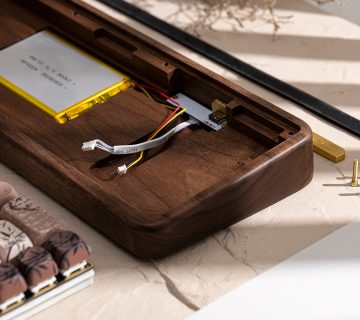
- PCB: the circuit board carrying the switch connections, controller, LEDs, and other electronics.
- Plate: an optional or integrated layer that aligns the switches and influences stiffness and sound.
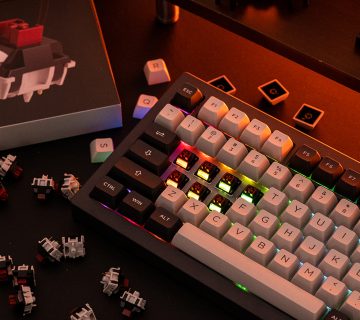
- Switches: the mechanisms under the keys.
- Stabilizers: supports used under longer keys such as Space, Enter, Shift, and Backspace.
- Keycaps: the surfaces touched by the user.
- Mounting system: the way the plate or PCB is held inside the case.
- Firmware and controller: the system that scans the keys and sends input to the host.
A barebone kit normally includes the case, PCB, plate, stabilizers, and related hardware, but usually leaves out switches and keycaps. The exact contents vary, so “barebone” should never be treated as a universal packing list.
Keyboard Layout Percentages Are Categories, Not Exact Math
Terms such as 60%, 65%, 75%, TKL, 96%, and 100% describe broad layout families. They do not always equal an exact percentage of a full-size keyboard, and two keyboards in the same category may have different key counts.
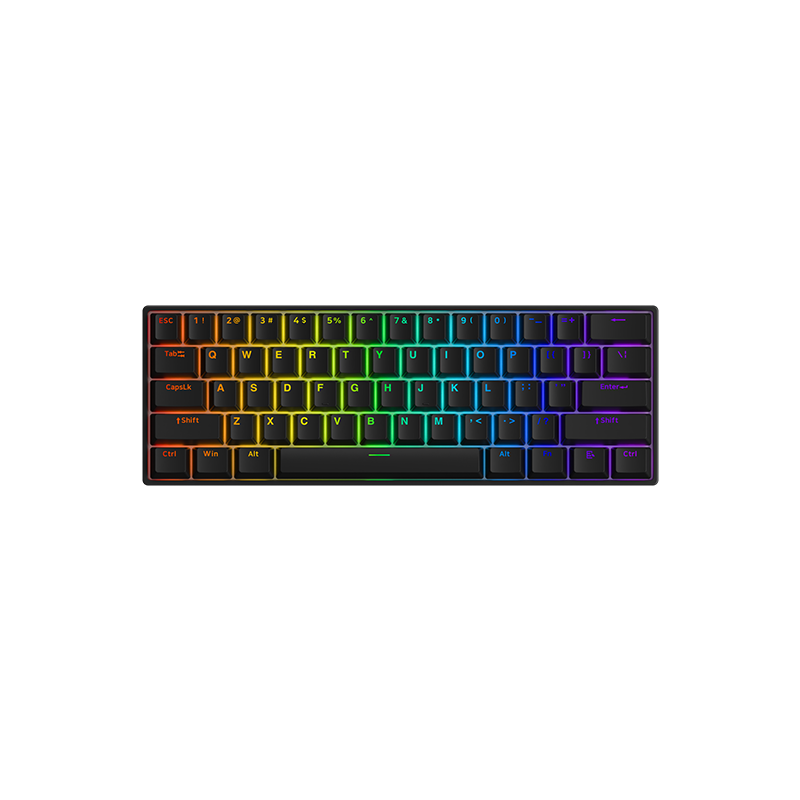
- 60%: usually keeps the alphanumeric block and moves arrows and navigation functions to an Fn layer.
- 65%: commonly adds dedicated arrow keys and a small navigation column.
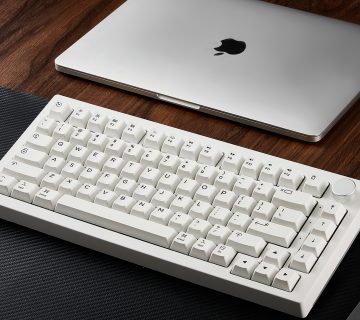
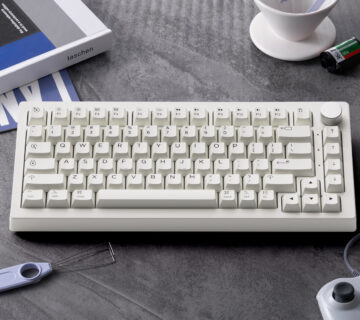
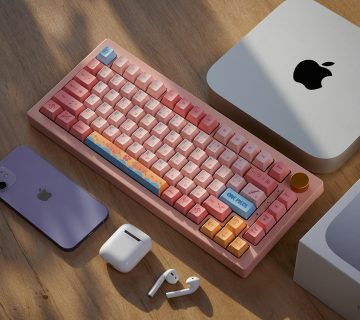
- 75%: usually includes arrows, an F-row, and several navigation keys in a compact arrangement.
- TKL: removes the number pad but keeps the F-row, arrows, and navigation cluster.
- 96% or 1800 compact: keeps most full-size functions while reducing gaps between sections.
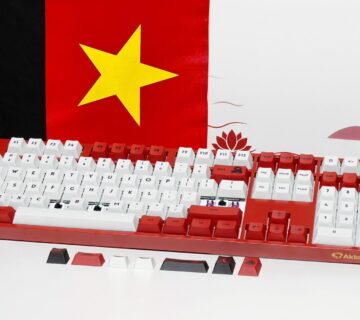
- 100% or full-size: includes the alphanumeric area, F-row, navigation cluster, arrows, and number pad.
The best layout is the smallest one that still gives you convenient access to the keys you use regularly. A compact keyboard saves desk space, but moving frequently used commands to layers can add friction.
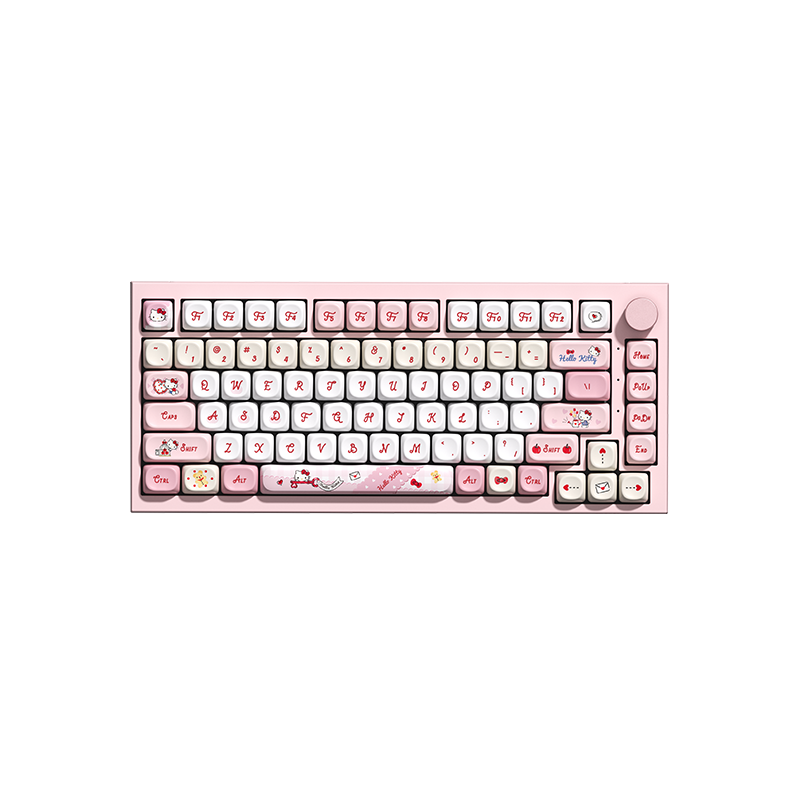
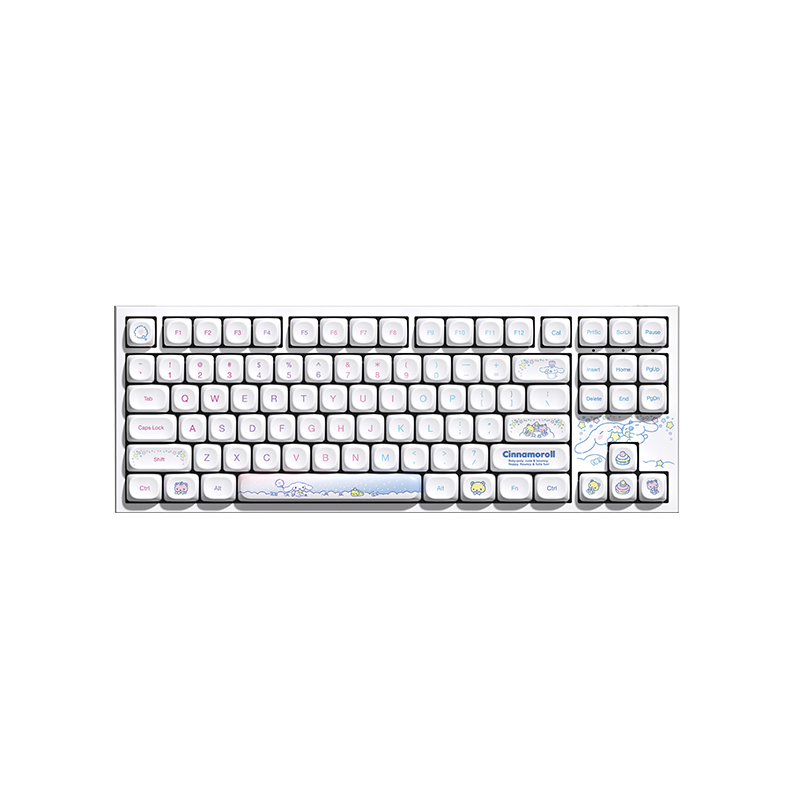
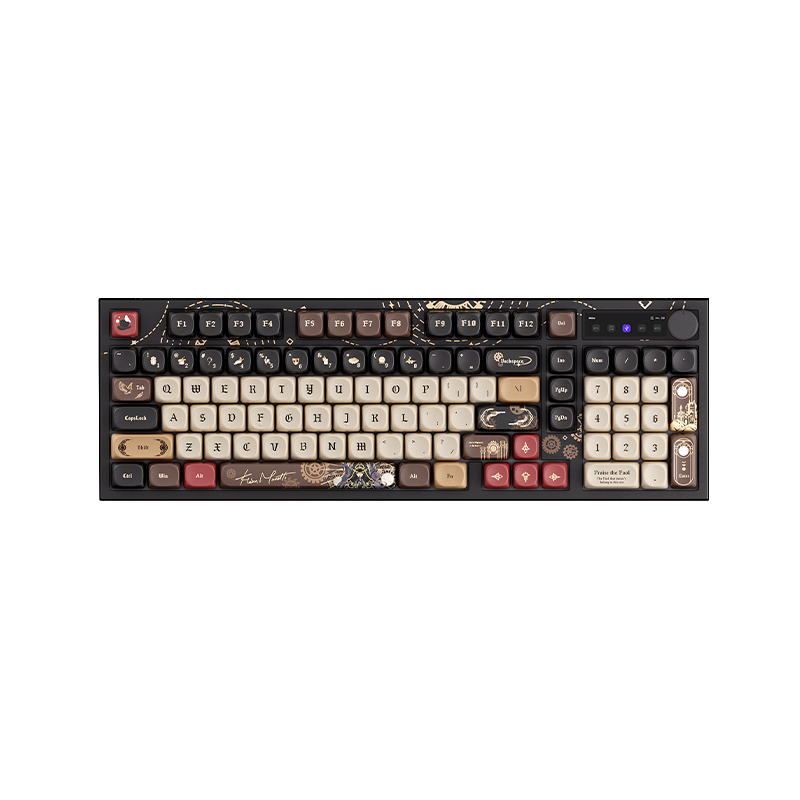
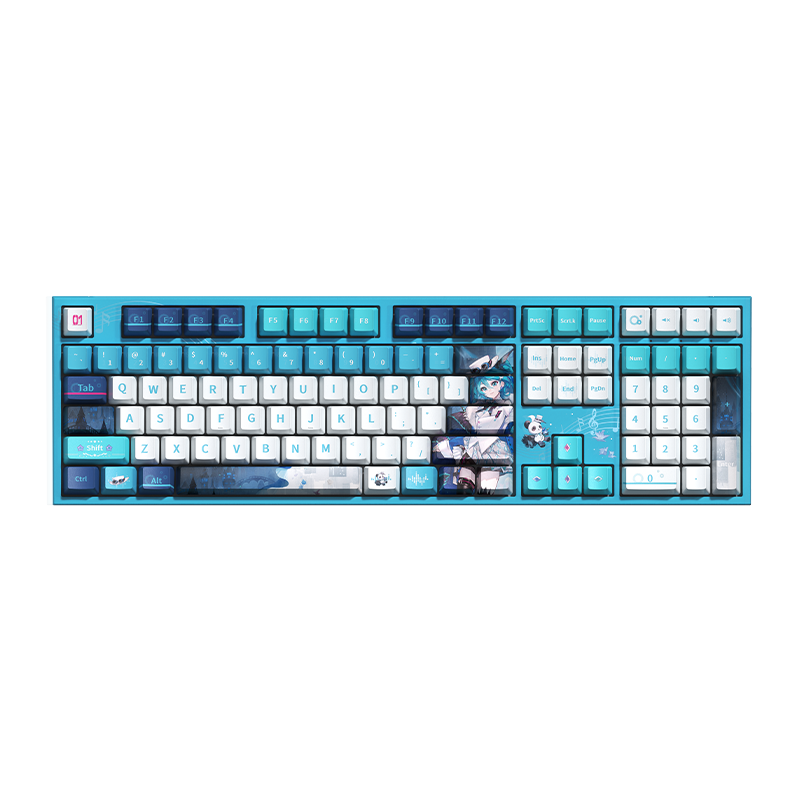
Linear, Tactile, and Clicky Switches
Switch color names once provided a rough shorthand, but modern switch names are too varied to identify behavior reliably. Check the switch type and specification instead.
- Linear switches move without a designed tactile bump. They are often chosen for smooth travel and gaming, but they are not automatically faster.
- Tactile switches provide a bump during the press, giving physical feedback without necessarily producing a click.
- Clicky switches add an audible click mechanism and usually tactile feedback.
- Silent switches use internal dampening to reduce top-out and bottom-out noise. Silent versions can be linear or tactile.
Operating force, pre-travel, total travel, spring behavior, housing material, lubrication, and keyboard construction all affect the experience. A sound test is useful, but microphones, desk surfaces, keycaps, cases, and recording processing can make the same switch sound different.
Keycap Compatibility Is More Than the Stem Shape
Most enthusiast mechanical keyboards use MX-style cross stems, but stem fit is only the first compatibility check.
Keycap sets also need the correct key sizes and legends for the layout. A compact keyboard may use a shorter right Shift key, nonstandard bottom-row keys, or extra navigation keys that a basic set does not include.
Key size is measured in units, written as u. A standard letter key is 1u wide. A 2u key is twice that width. Larger keys need compatible stabilizers and mounting positions.
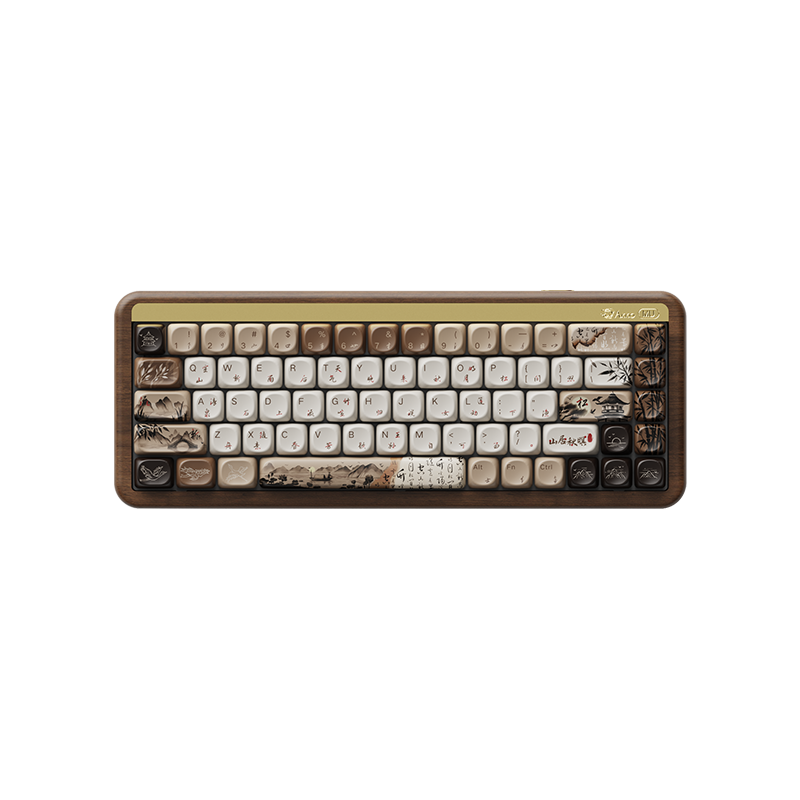
Profiles describe keycap shape and height. Sculpted profiles use different shapes across rows, while uniform profiles use the same shape on every row. Row labels such as R1 and R4 are not completely consistent across manufacturers, so match the keycap set’s own row diagram instead of relying only on the label.
What Hot-Swap Actually Means
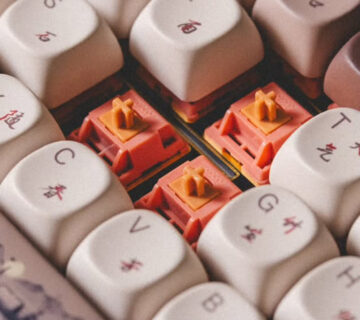
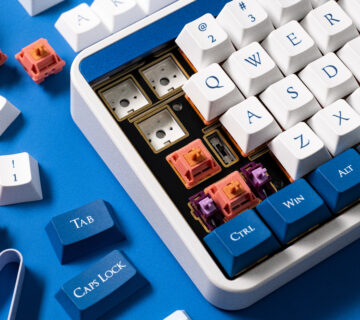
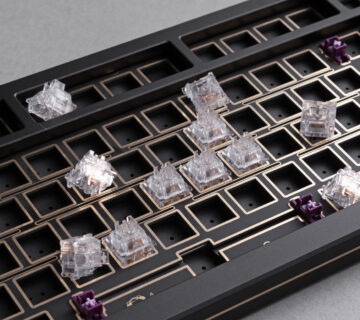
On a compatible hot-swappable mechanical keyboard, switches can be removed and installed without soldering. This makes it easier to replace a damaged switch or try a different feel.
Hot-swap does not mean universal compatibility. Check:
- whether the PCB supports MX-style mechanical switches, optical switches, or magnetic switches;
- whether the sockets accept 3-pin, 5-pin, or both mounting styles;
- whether the plate opening fits the switch housing;
- whether north-facing or south-facing LEDs create interference with the chosen keycap profile;
- whether the product limits the number or type of switch swaps.
When installing a switch, support the socket area if the keyboard design allows access, keep both metal pins straight, and stop if the switch does not seat normally. Excessive force can bend a pin or damage a socket.
Prebuilt, Barebone, and Custom Keyboards
A prebuilt keyboard arrives with switches and keycaps installed. It is usually the simplest choice for a first purchase because the manufacturer has selected compatible parts and provides one product-level warranty.
A barebone keyboard is partly assembled and lets the buyer choose switches and keycaps. It offers customization without requiring PCB soldering or a fully independent parts list.
A custom build may involve choosing the PCB, case, plate, mounting style, stabilizers, switches, keycaps, firmware, and sound tuning separately. It offers more control, but compatibility and assembly become the builder’s responsibility.
“Custom” does not automatically mean better, and “prebuilt” does not mean unmodifiable. Many current prebuilt boards include hot-swap sockets, remapping software, replaceable keycaps, and accessible internal construction.
Wired, Bluetooth, and 2.4 GHz Connections
- Wired USB provides power and data through the cable and avoids battery management.
- Bluetooth is convenient for laptops, tablets, phones, and multi-device switching, but behavior depends on the host and Bluetooth implementation.
- 4 GHz wireless uses a dedicated USB receiver. A well-designed implementation can provide lower and more consistent latency than Bluetooth, but receiver placement, interference, firmware, and battery state still matter.
A “tri-mode” keyboard normally supports wired USB, Bluetooth, and 2.4 GHz. Check whether all features, polling rates, lighting modes, and software functions are available in every connection mode.
A Practical First-Keyboard Checklist
Before comparing colors and sound tests, answer these questions:
- Which keys do you use every day?
- Do you need a number pad, dedicated F-row, or dedicated arrow keys?
- Do you want linear, tactile, clicky, or silent feedback?
- Is switch hot-swap important, and which switch family does it support?
- Does the keycap set include every size required by the layout?
- Do you need wired, Bluetooth, 2.4 GHz, or multi-device switching?
- Does the keyboard support your operating system and preferred remapping software?
- Are replacement switches, keycaps, firmware, and support available?
Final Thoughts
A mechanical keyboard becomes easier to understand once the terminology is separated into layout, switch feel, keycaps, construction, compatibility, and connectivity.
For most beginners, a compatible prebuilt or barebone hot-swap keyboard is a practical starting point. Choose the layout first, then the switch feel, and only then consider sound tuning and cosmetic customization. That order avoids buying attractive parts that do not fit the way you work.